 Parzelle37
Garden Plan
Edit layout
Tap the pencil icon to add, move or resize beds, paths and other zones.
Add a zone
In edit mode, tap + to add a new bed, path, structure or tree/pot.
Log activity
Log a garden-wide activity, e.g. watering the whole garden or a note.
Activity history
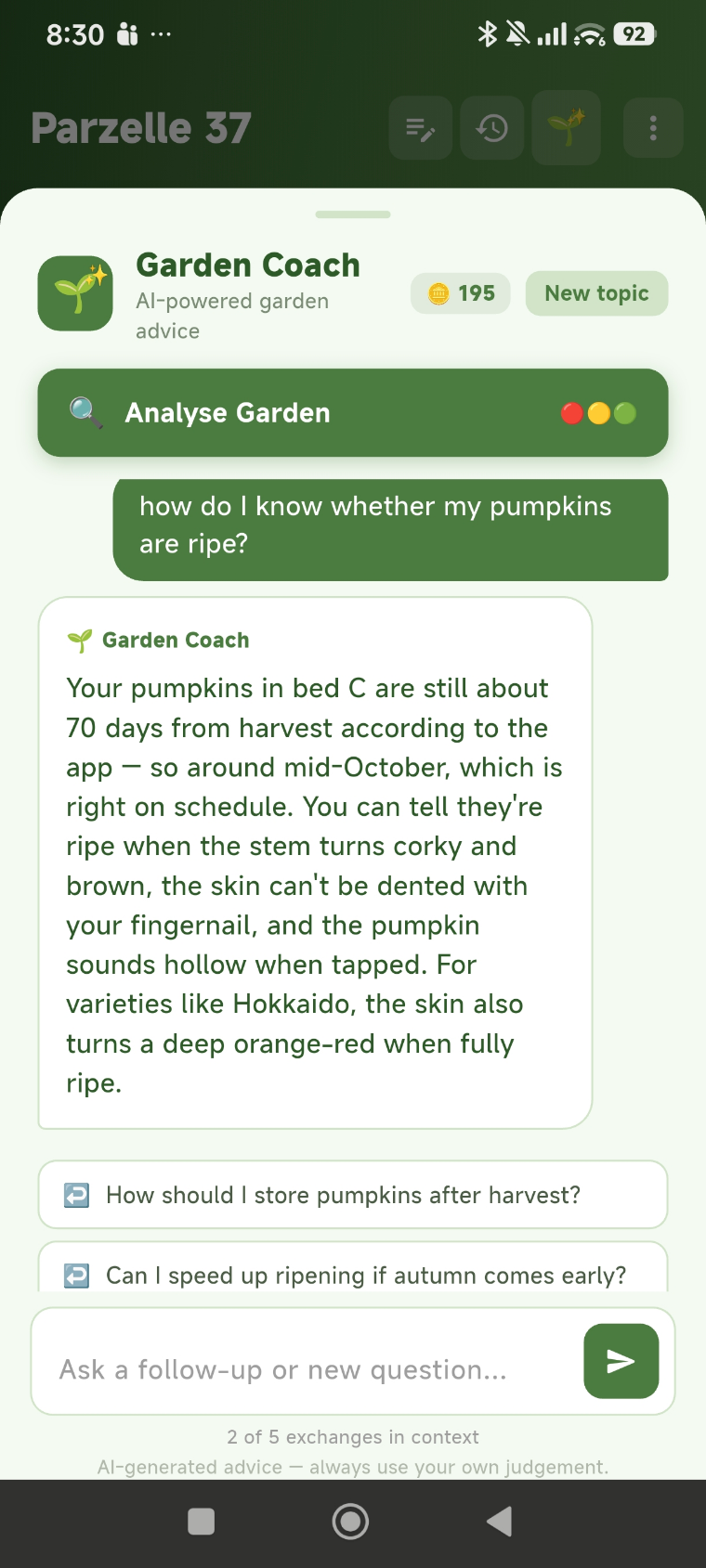
Shows recent activity across the whole garden, with a badge for unread entries.
Garden Coach
AI-powered analysis and advice for your garden — see its own section below.
Weekly tip
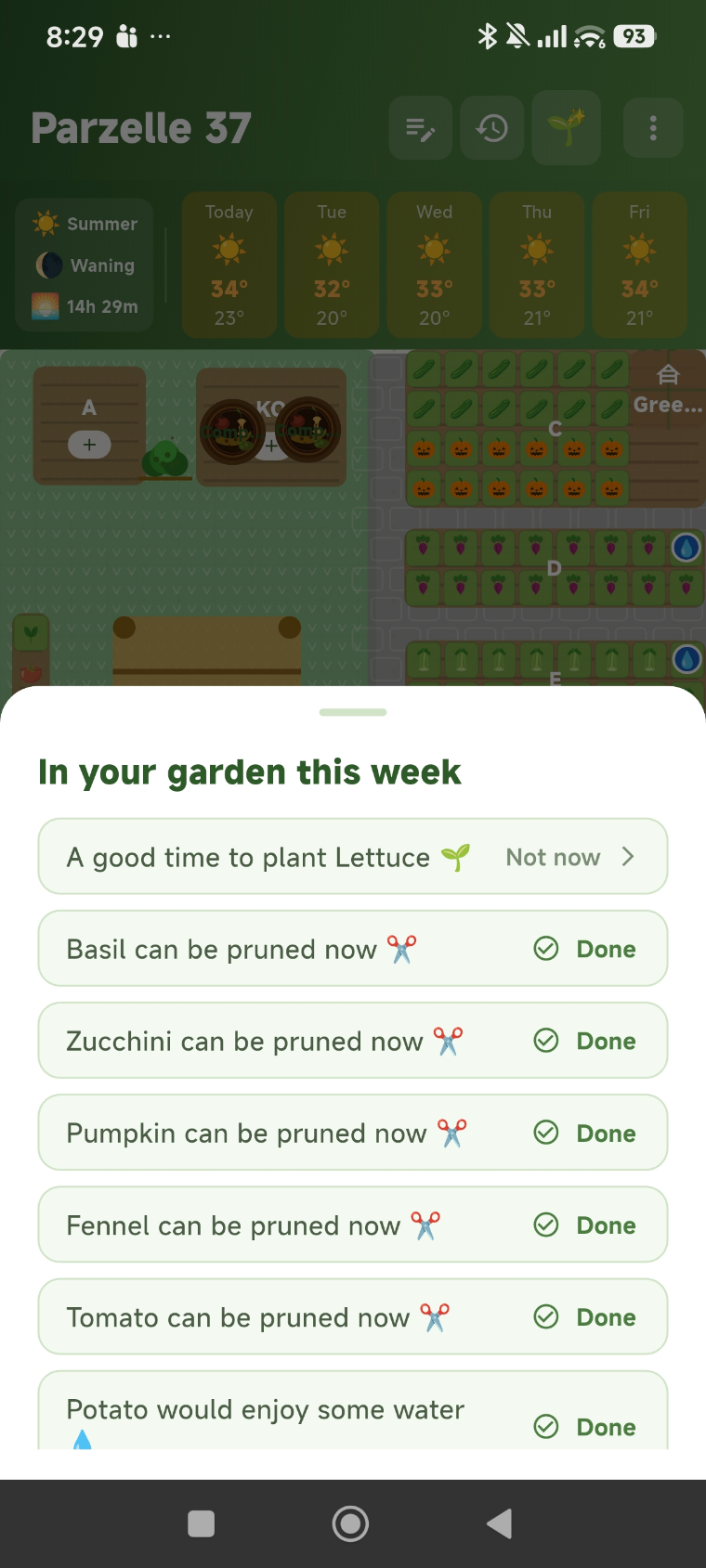
A new seasonal tip appears each week. Dismissed it? The lightbulb icon brings it back.
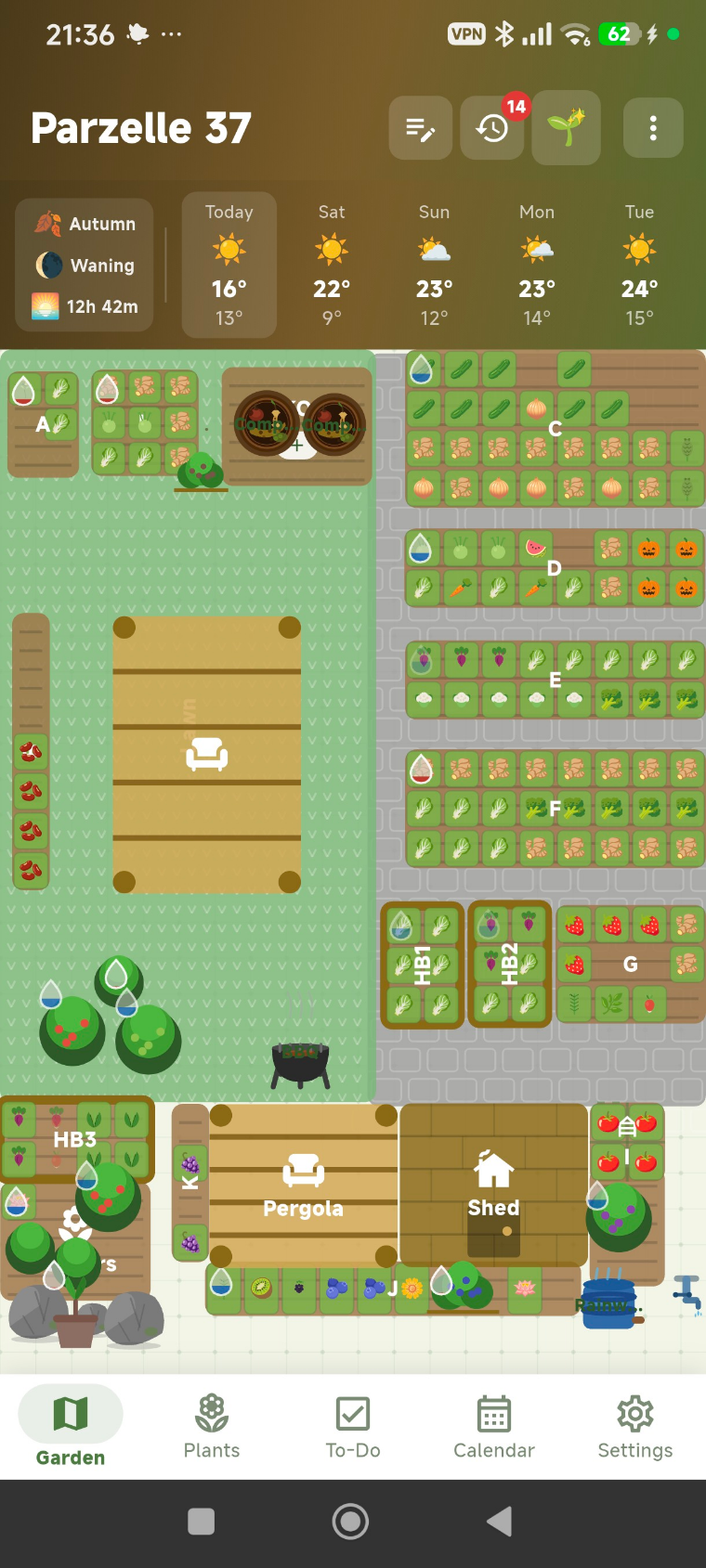
Zone Types Explained
Planting beds
Hold multiple plants at once — tap to add, track and harvest them.
Structures & features
Paths, sheds and similar elements — mostly layout, but still tappable for activities.
Trees & living (Trees/Pots)
Instead of holding several plants, this links to a single plant. Shows care info, companion plants and the linked plant's harvest window.
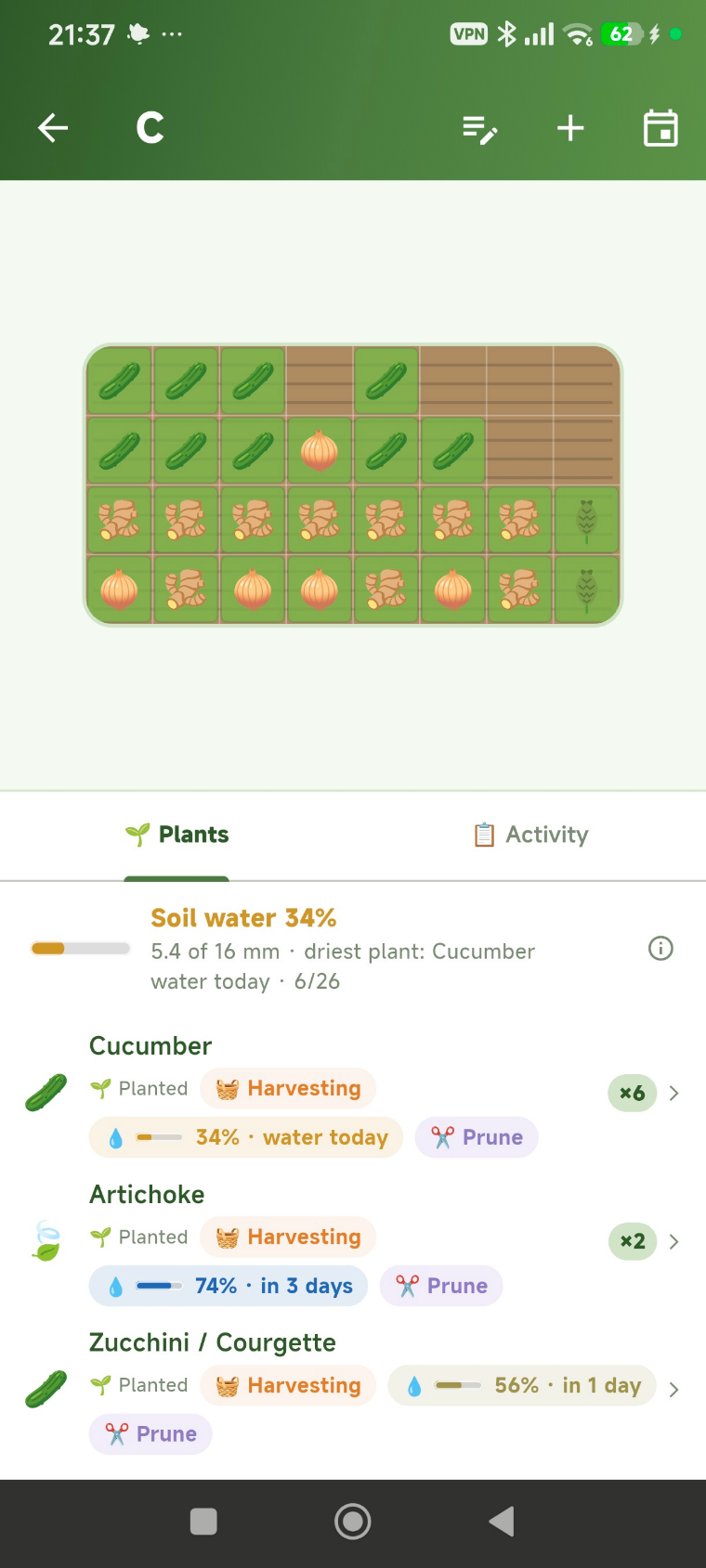
Zone Detail Screen
Add/link a plant
Beds: add a plant via +. Trees/pots: link a plant via the link icon.
Swipe gestures
In the plant list: swipe left to water, swipe right for other activities (fertilizing, pruning, a note).
Harvesting
When marking a plant as harvested, the app asks whether it should stay (e.g. perennial or repeat-harvest crops) or be removed to free up the spot.
Set planting date for all
Sets the same planting date for all plants in the bed — useful for backdating plants you put in earlier.
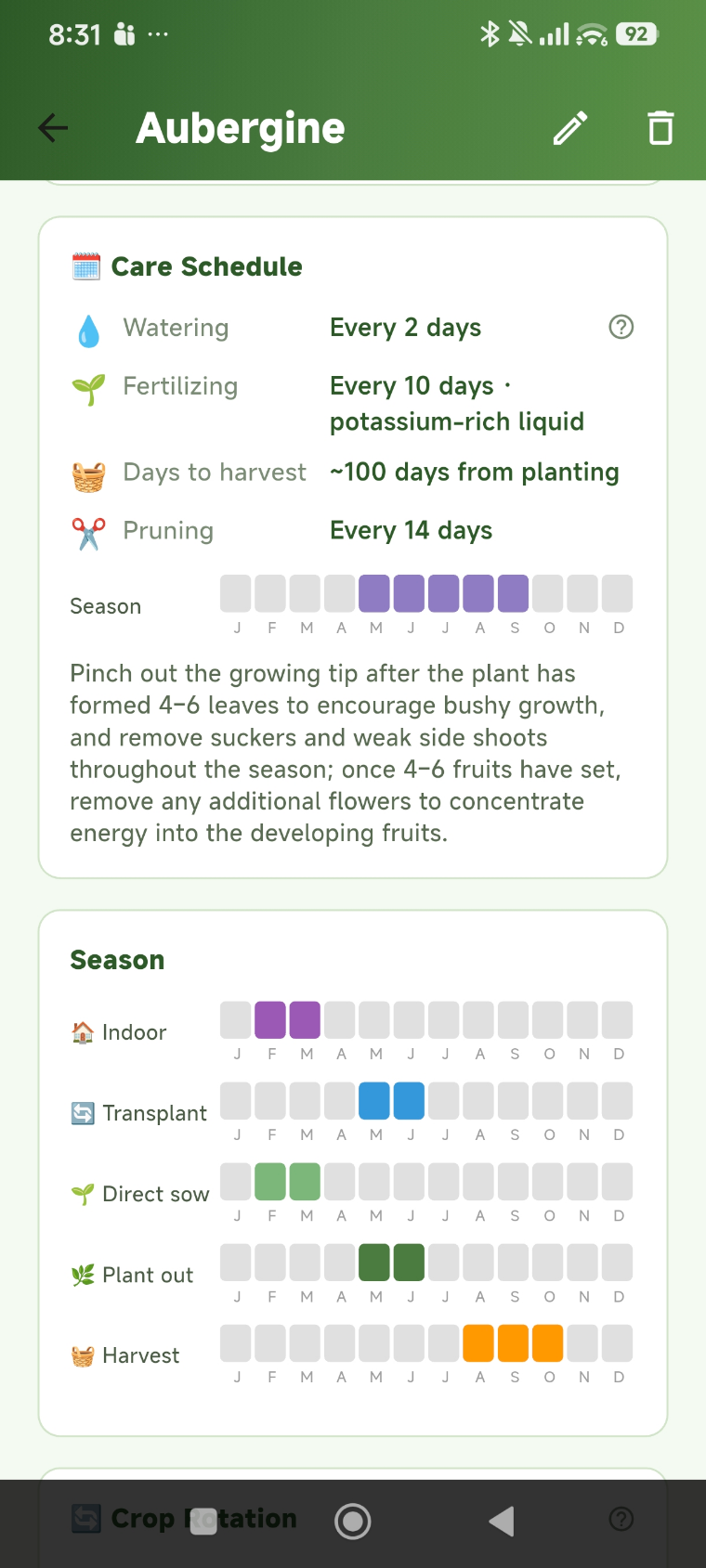
Plant Wiki
Browse all plants
Over 55 plants with care info, companion plants and harvest details.
My Garden
Shows only the plants actually growing in your garden — with water level and harvest countdown, driest first.
AI Autofill
Fills in care details automatically — for a single plant or all of them at once.
Ripeness & Harvest Window
Ripeness from accumulated warmth
Instead of a fixed calendar, the app estimates ripeness from accumulated warmth: a plant ripens faster on warm days and slower on cool ones. It is based on your garden's real local weather (a temperature sum, also called Growing Degree Days).
Learns from your harvests
When you mark a plant as harvested, the app remembers how much warmth it actually needed and estimates the same variety more accurately in your garden next time. This fine-tuning stays within your garden and is kept per plant variety.
An estimate at first
Until there is enough weather data for your bed, the app shows a calendar-based estimate with a note that it will get more precise. Once enough days are recorded it automatically switches to the weather-based estimate.
Watering & Water Level
Every bed has a water store
Soil stores water like a container. Watering fills it to 100 %, daily evaporation empties it, rain refills it. You see that level as a percentage everywhere — in the bed, in the plant list and on the garden plan. It never drops below 0 %: empty is empty.
Each plant is calculated on its own
The level is calculated per plant, because lettuce dries out faster than squash. A bed therefore always shows its thirstiest plant — if the bed reads 40 %, at least one plant is at 40 %, while the others may be far better off. Open the bed to see each one.
The droplet on the garden plan
Above 50 % everything is fine — the plan deliberately shows nothing. From 50 % downwards a blue droplet appears and grows steadily stronger. Below 30 % it turns red: that plant really is short of water. So you can see at a glance where it is urgent, instead of the same mark everywhere.
Rain always counts
Every millimetre of rain measured at your location fills the store — even if you have never logged a watering. There is no minimum amount to reach. Very heavy rain is capped, because soil only absorbs so much and the rest runs off. Covered beds and greenhouses are not credited with rain — there, only you water.
Tap the level — it shows its own arithmetic
In the bed detail, tapping the water level opens a table: evaporation, rain, logged waterings and the level at the end of the day, for every day. This is exactly the arithmetic the display comes from — not a second derivation that could disagree with it.
Trees, shrubs and pots are included
A plant linked to a tree, shrub or pot also gets a water level — by the same arithmetic as a plant in a bed. In practice a pot dries out faster than a bed; set its watering interval shorter to reflect that.
No interval, no level
The calculation needs a watering interval in days. If it is missing, the app invents nothing and says so plainly: “no watering plan”. Add the interval in the plant wiki, or let the AI fill it in. Zones you have marked as automatically irrigated deliberately show neither a droplet nor watering reminders.
Weather Data
Observed weather + forecast
The app uses the weather actually measured at your location (looking back) plus today's forecast. Both feed the ripeness and watering calculations. You can find the sources under Settings → Data sources.
Where the rain comes from
Rain is most accurate when a real measuring station is near your garden — within 25 kilometres. Switzerland is measured by MeteoSwiss, Germany by Deutscher Wetterdienst, Austria by GeoSphere Austria. If no station is close enough, or it reports too little on a given day, the app estimates rain from a weather model instead. That is coarser, especially for local thunderstorms: a downpour over your village can disappear in the model. Settings → Data sources shows which source applies to you.
Planted earlier?
If you set a planting date in the past, the app automatically fetches the weather for that period so ripeness and watering are correct from the start.
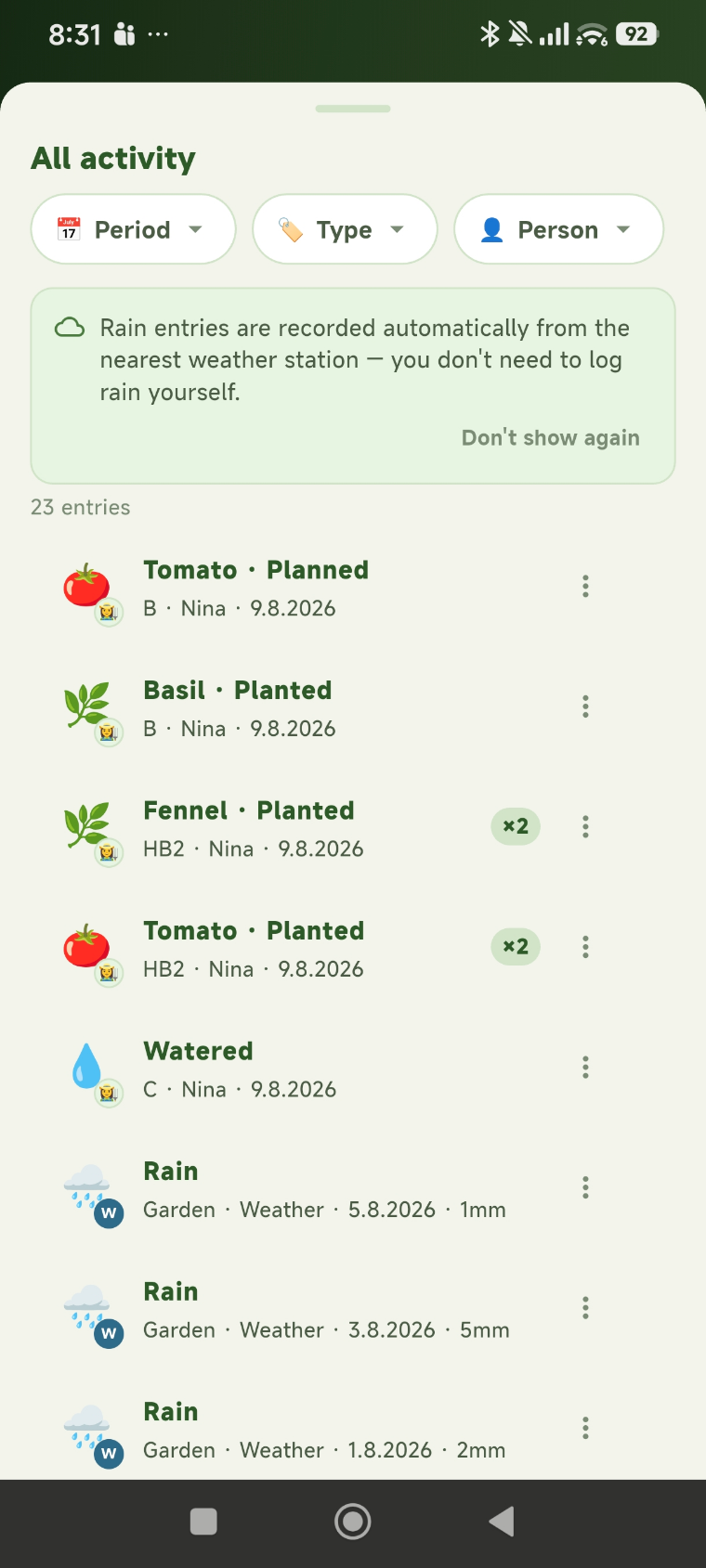
Garden Coach
Analyse garden
Shows prioritised recommendations (urgent/this week/optional) based on your actual garden.
Ask questions
Ask any gardening question — the coach knows your plants, the weather and recent activity.
Todos
Create a task
Via the round + button at the bottom right — with an optional due date and assignee.
Calendar / Duty Roster
Configure duty roster
Admins only: set the rotation, rhythm (daily/weekly) and start date.
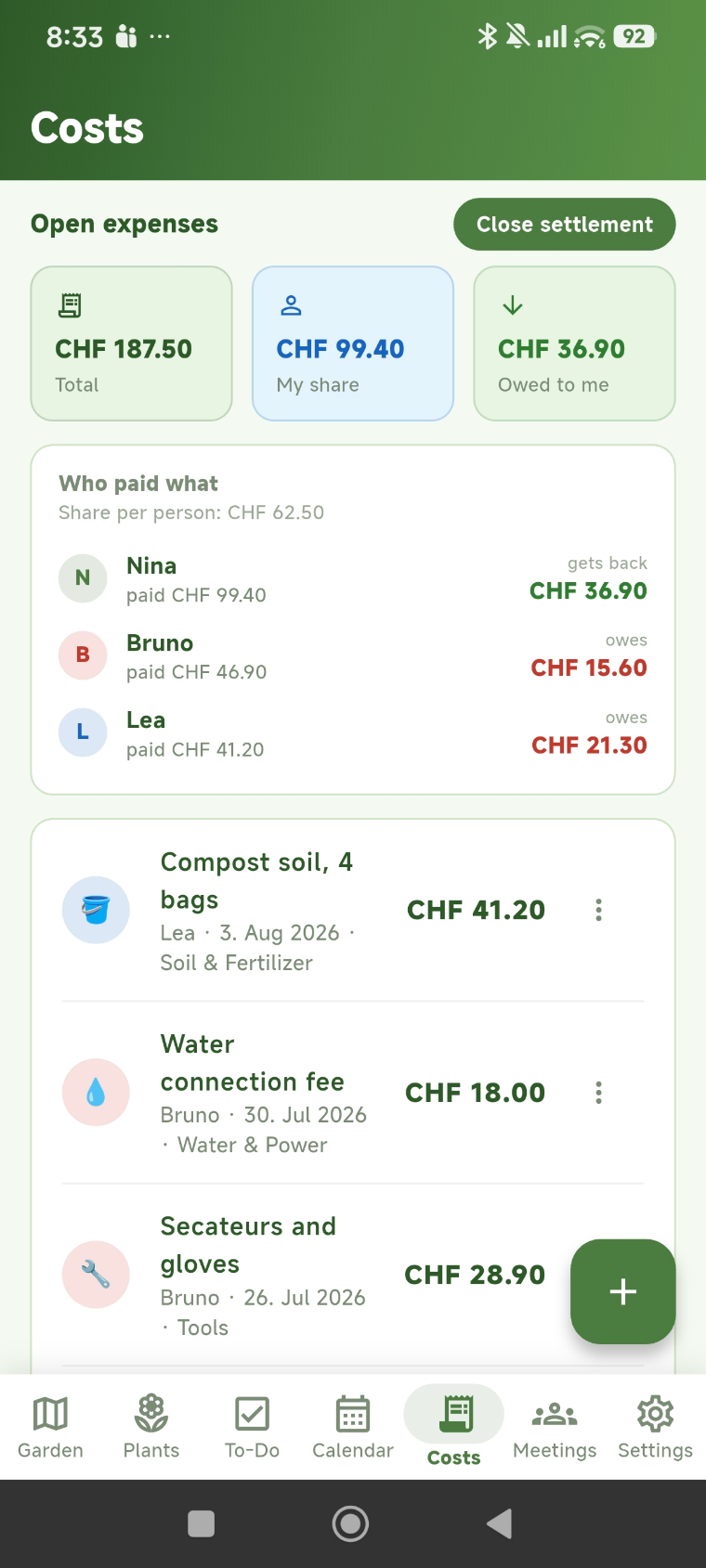
Costs
Log an expense
Amount, label and who paid. You can photograph a receipt. The Pot tier includes three expenses; beyond that you need the Garden tier.
Who shares an expense
Participants belong to the individual expense, not to today's member list. The default is everyone; if you pick fewer, the expense shows who shares it. Later changes to the group therefore no longer shift an expense that was already logged.
Close a settlement
In three steps: check the expenses, review the balancing payments, close. If the balances do not add up to zero, closing is blocked — that keeps a wrong split from being written down for good. Closing freezes the names permanently.
When someone leaves the garden
Anyone who leaves or is removed stays in the settlement — with their credit or debt, marked as former. The split of past expenses is frozen at that moment instead of shifting onto those who remain.
Meetings
Log a meeting
Create a protocol, save it as a draft or mark it as finished.
Members & Invite
Create an invite link
Any member can generate and share a link to invite more people.
Settings
Change language
Affects the whole app, including AI responses.
Change garden location
Admins only. Weather and watering follow automatically, but only from 5 km of difference — a correction within the same village does not trigger a refetch.
Repeat tour
Shows the introductory tour again.